QR Code Generator
Enter text or a link to create a scannable QR code. Adjust the size and download it as a PNG image.
How it works and known limits
What a QR code stores
A QR code encodes bytes as a grid of modules. This tool uses byte mode with UTF-8, so URLs, plain text and non-Latin characters all work. Larger payloads require a denser grid with smaller modules at a fixed image size, which can reduce scannability on small screens.
Error correction
A higher error correction level lets a code survive damage or a logo overlay, at the cost of a denser pattern. Choose low for clean short links on a large print, medium for general use, and high when the code will be small or partially obscured.
Known limits
There is a maximum data capacity per QR version and error correction level. Very long text may exceed what a reliably scannable code can hold. Always test the generated code with a phone before printing it on material where it cannot be changed.
How to create a QR code (with screenshots)
A four-step walkthrough using a real link. Every action runs in your browser — nothing is uploaded.
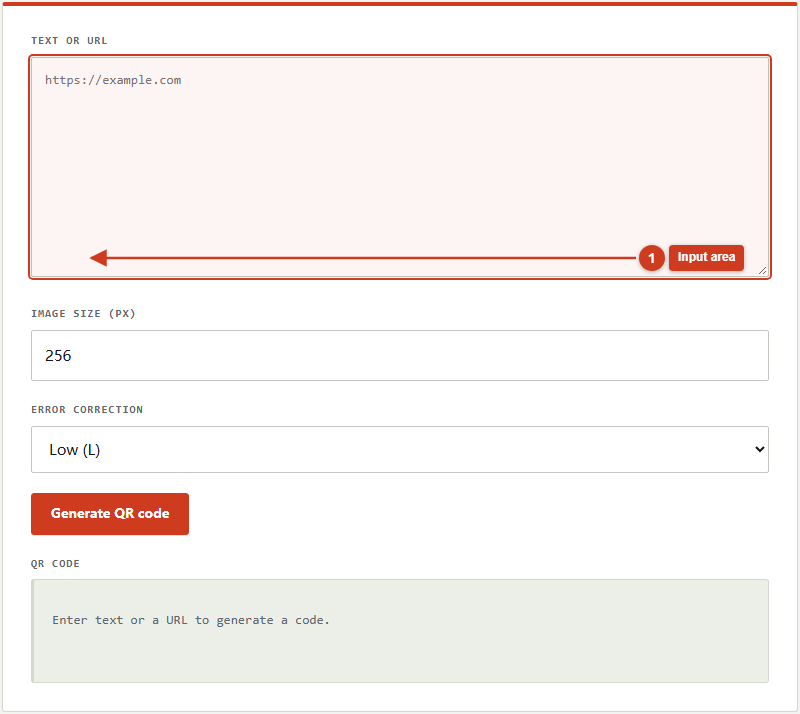
Open the tool
Open the QR Code Generator page. You will see a text box, a size field, an error-correction menu, the Generate button and an empty result area.
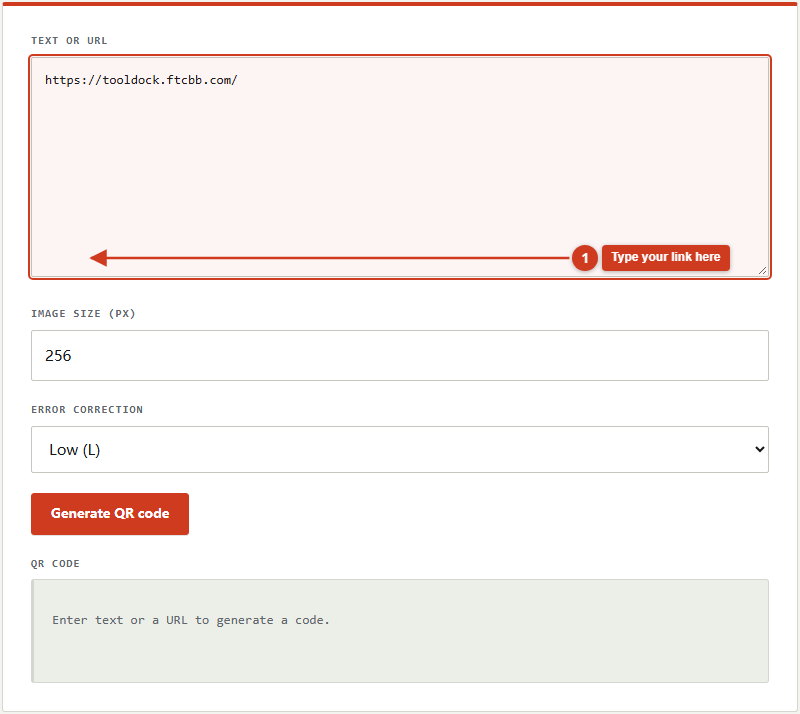
Type the text or link
Paste the destination into the Text or URL box. This example uses a link, but plain text works the same way.
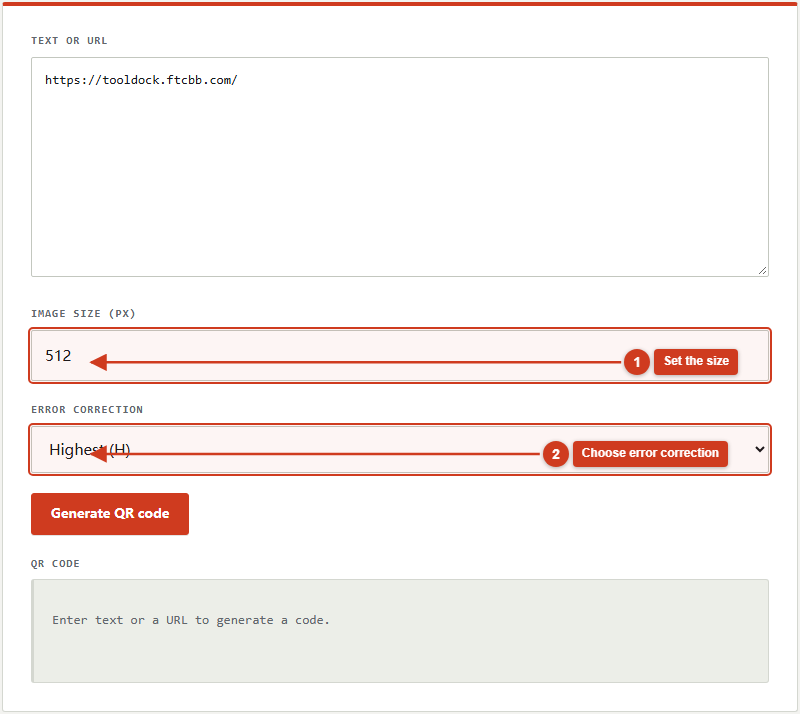
Set the size and error correction
Set the image size in pixels and choose an error-correction level. Use Highest (H) when the code will be small or printed with a logo over it.
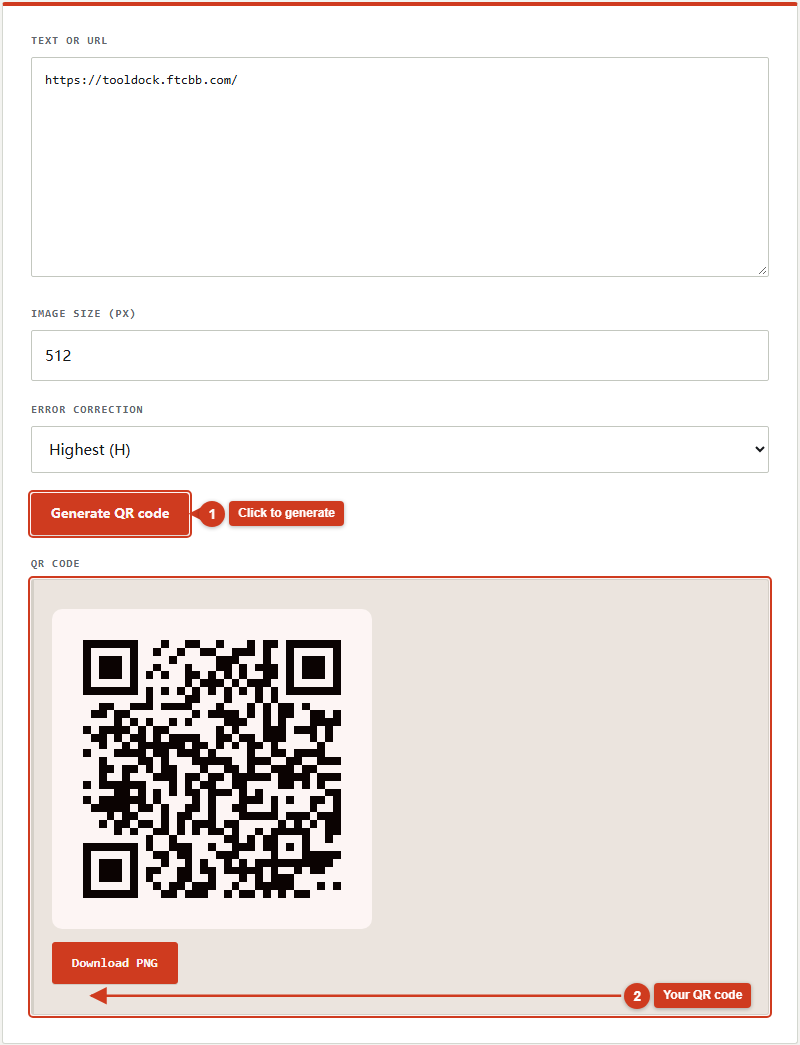
Generate and save
Click Generate QR code. The code appears in the result box. Right-click the image to save it as a PNG, then scan it with your phone before printing.
Tip: Keep the encoded text short: the more data you pack in, the denser the grid and the harder it is to scan from a distance.
Frequently asked questions
Is my data uploaded to generate the code?
No. Encoding happens entirely in your browser and nothing is transmitted.
Can I encode a Wi-Fi network?
Yes. Use the standard WIFI format with your network name and password.
Which error correction level should I use?
Medium suits most cases. Use high for small codes or when you plan to place a logo over the centre.
Can I download the result?
Yes. The generated QR code can be saved as a PNG image.
Why does very long text fail?
A QR code has finite capacity. Shorten the URL or reduce the error correction level.
Page last reviewed: