Image to Base64
Choose an image and get its Base64 data URL instantly, ready to copy into code or embed in a document.
How it works and known limits
What a data URL contains
A data URL begins with a prefix such as data:image/png;base64, followed by the Base64 text of the file. Browsers treat it as an embedded image, so it can be used in a CSS background, an img src or a JSON payload without a separate file request.
Why size matters
Base64 expands data by roughly 33 percent compared with the original file, and the text is included inline wherever you paste it. Small icons and simple graphics are good candidates. Large photographs produce very long strings that bloat stylesheets and HTML.
Known limits
The tool reads the file you choose with the browser FileReader API and does not compress or transform it. There is no server-side storage. Browser or editor limits on very long lines may make huge data URLs awkward to handle.
How to convert an image to Base64 (with screenshots)
Turn an image into a data URL you can embed directly in CSS, HTML or JSON.
Open the Image to Base64
Open the Image to Base64 page. The image file is where your work begins; the result appears on the right.
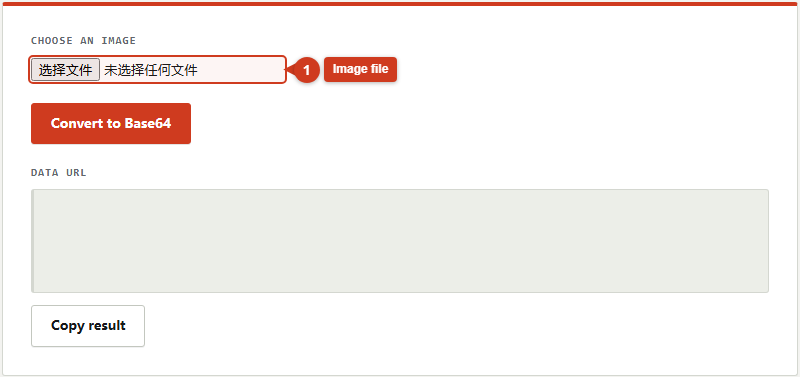
Enter your input
Choose an image file to encode.
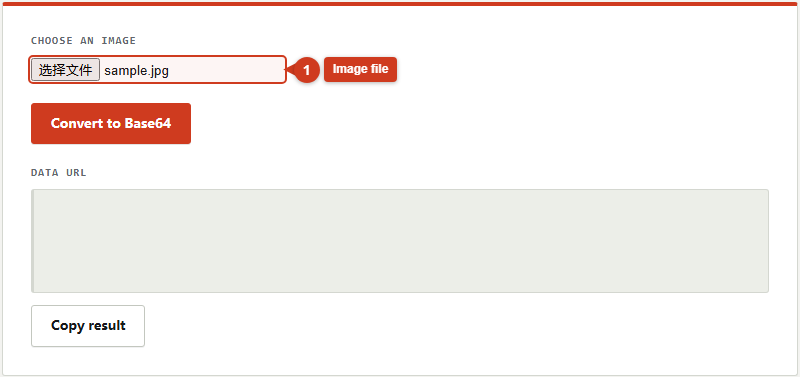
Run the tool
Click Convert to Base64 to read the file as a data URL. The full data URL appears in the result box, starting with data:image/ and the MIME type.

Tip: Data URLs are convenient but inflate file size by about a third — avoid them for large images.
Frequently asked questions
Is my image uploaded?
No. The file is read locally with FileReader and never sent anywhere.
Can I use the output in CSS?
Yes. Paste the data URL as the value of a background-image url().
Why is the output so large?
Base64 adds about a third to the file size, and the whole string is stored inline.
Does it change the image?
No. The bytes are encoded exactly as chosen, with no recompression.
Page last reviewed: