Image Resizer
Choose an image, set a new width and height, and download the resized copy. Your file never leaves the device.
How it works and known limits
How resizing works
The image is decoded and drawn onto a canvas at the requested pixel dimensions. Browsers apply their own high-quality interpolation when scaling down, which keeps edges smooth. When the aspect ratio is locked, changing one dimension updates the other automatically using the original proportions.
Output and quality
JPEG and WebP output accept a quality setting, while PNG ignores it because PNG is lossless. Transparent pixels are preserved in PNG and WebP; JPEG fills transparency with white because the format has no alpha channel.
Known limits
Upscaling adds no detail and can look soft, since the tool only interpolates existing pixels. Very large images are limited by browser memory. A percentage resize is calculated from the original dimensions each time you press the button.
How to resize an image (with screenshots)
Change an image's pixel dimensions or scale it by percentage, keeping the aspect ratio if you wish.
Open the Image Resizer
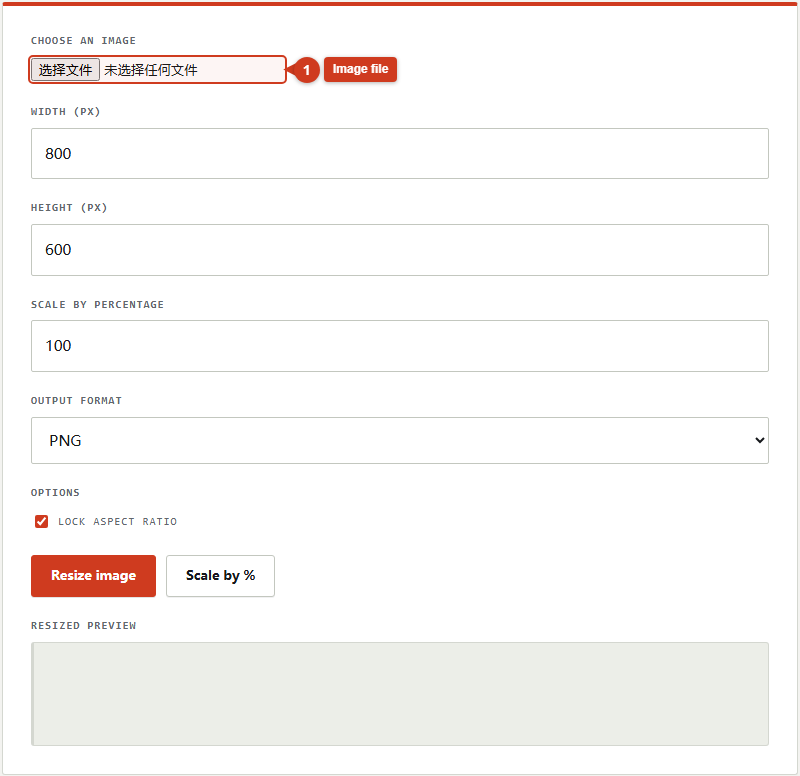
Open the Image Resizer page. The image file is where your work begins; the result appears on the right.
Enter your input
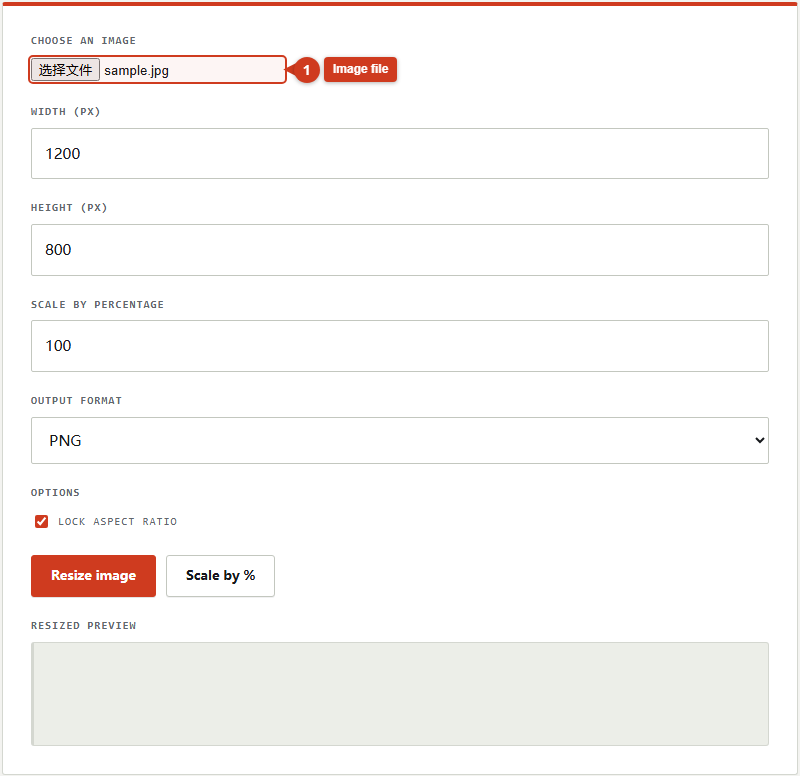
Choose an image file. Its original dimensions are filled in automatically.
Set the options
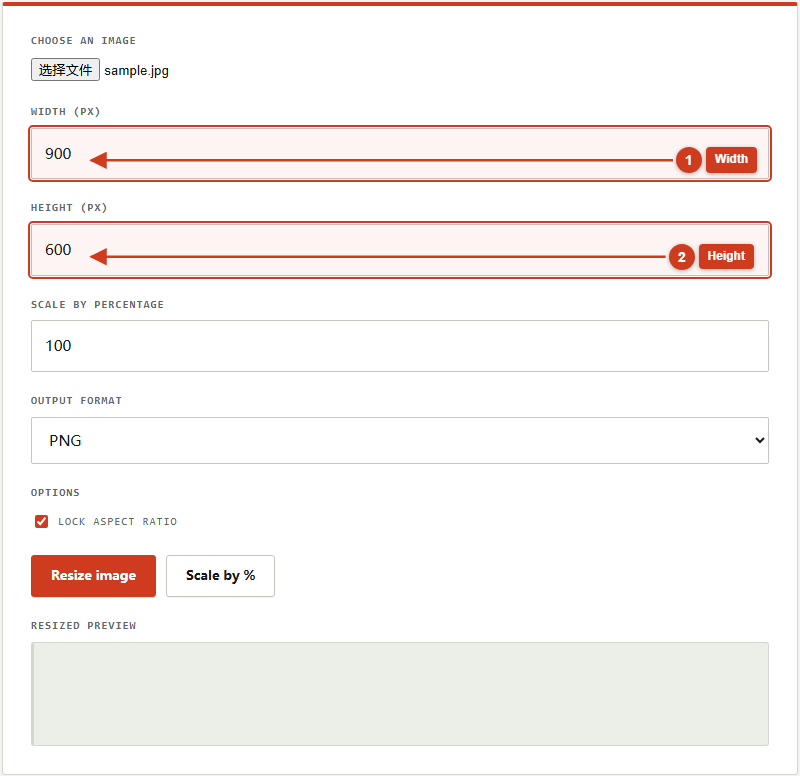
Set the target width in pixels. Set the target height in pixels.
Run the tool
Click Resize image to apply the new dimensions. The resized preview appears with its dimensions and a download link for the chosen format.
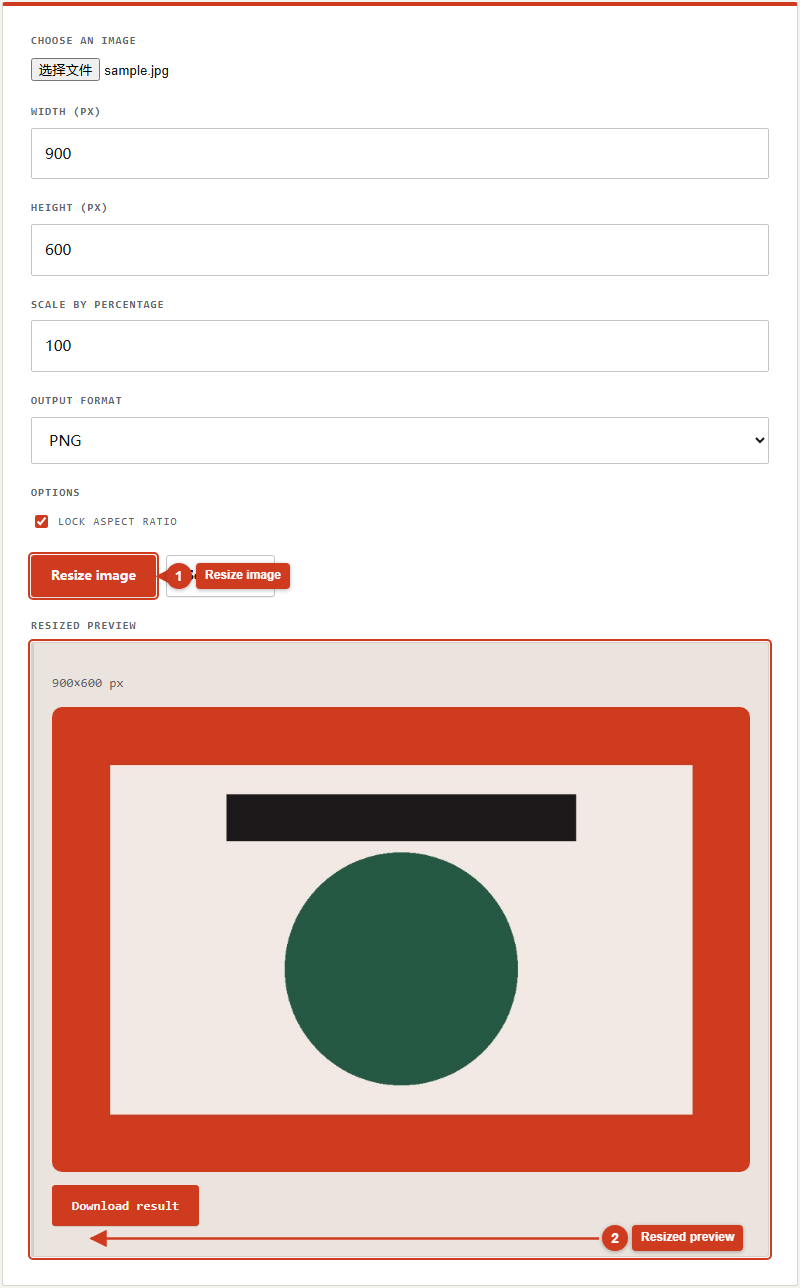
Tip: Keep Lock aspect ratio enabled to avoid stretching the picture when changing one dimension.
Frequently asked questions
Does my image get uploaded?
No. Resizing uses the Canvas API in your browser and the file stays on your device.
Can I keep the original aspect ratio?
Yes. Enable the lock aspect ratio option before resizing.
Which formats are supported?
JPEG, PNG and WebP inputs, with the same formats available for output.
Will upscaling improve quality?
No. Enlarging an image adds no new detail and may appear soft.
Page last reviewed: