Image Compressor
Choose an image, set quality and maximum dimensions, then compress. The image never leaves your device.
How it works and known limits
What happens to the image
The file is decoded with an object URL, drawn onto a Canvas at a scaled size and exported with toDataURL. Scaling only applies when the longer side exceeds the maximum dimension; smaller images are never enlarged. JPEG output paints a white background first so transparent pixels do not turn black.
Quality and the size estimate
The quality value is passed to the encoder and matters for JPEG and WebP; PNG ignores it because PNG compression is lossless. The displayed KB figure is estimated from the data URL length and is approximate, while the download button uses the exact encoded data.
Practical workflow
Start at quality 0.8 with a 1920 px limit for photographs. Images containing text or sharp lines need 0.9 or higher to avoid visible artifacts. Choose WebP to keep transparency in a smaller file, or PNG when lossless output matters more than size.
How to compress an image (with screenshots)
Shrink an image by choosing an output format, quality and maximum dimension — the file never leaves your device.
Open the Image Compressor
Open the Image Compressor page. The image file is where your work begins; the result appears on the right.
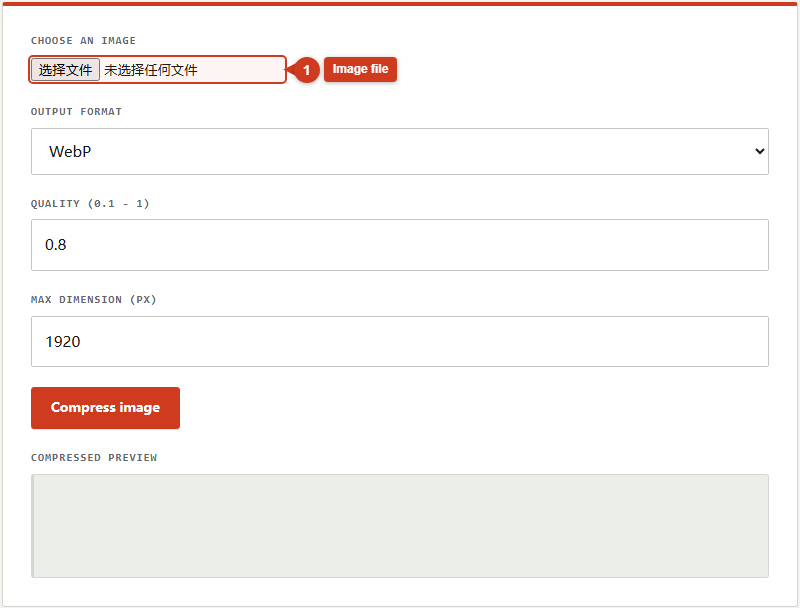
Enter your input
Click Choose file and select a photo from your device to begin.
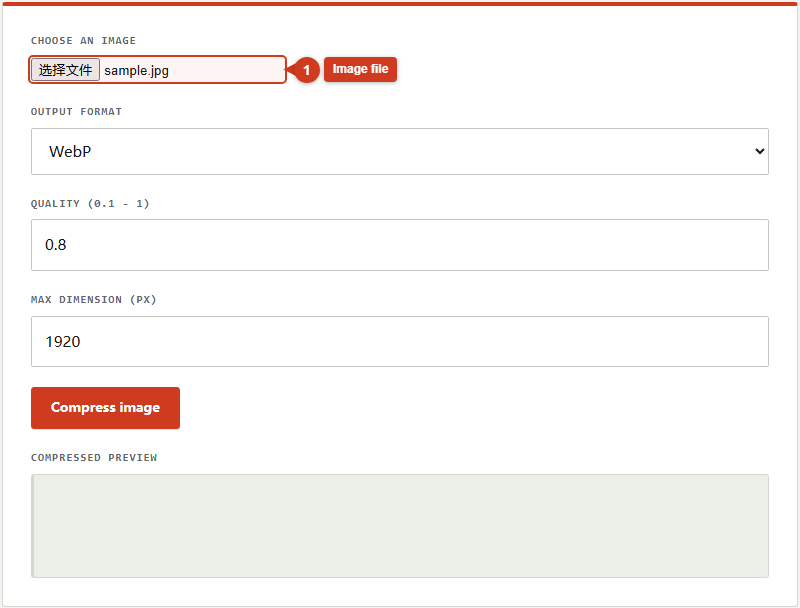
Set the options
Choose an output format. WebP usually gives the smallest file at good quality. Set the quality from 0.1 to 1. Lower values make the file smaller.
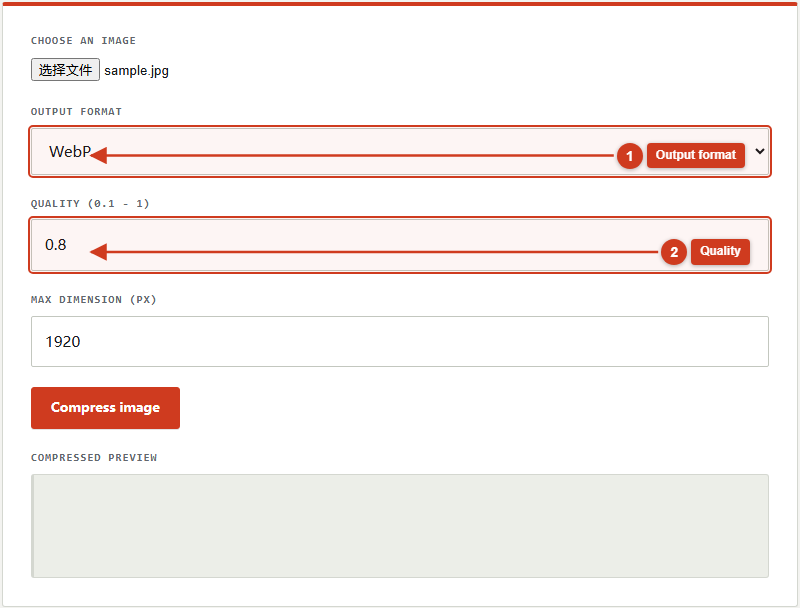
Run the tool
Click Compress image to process the picture. The result shows the new dimensions and an approximate file size, with a preview and a download link.
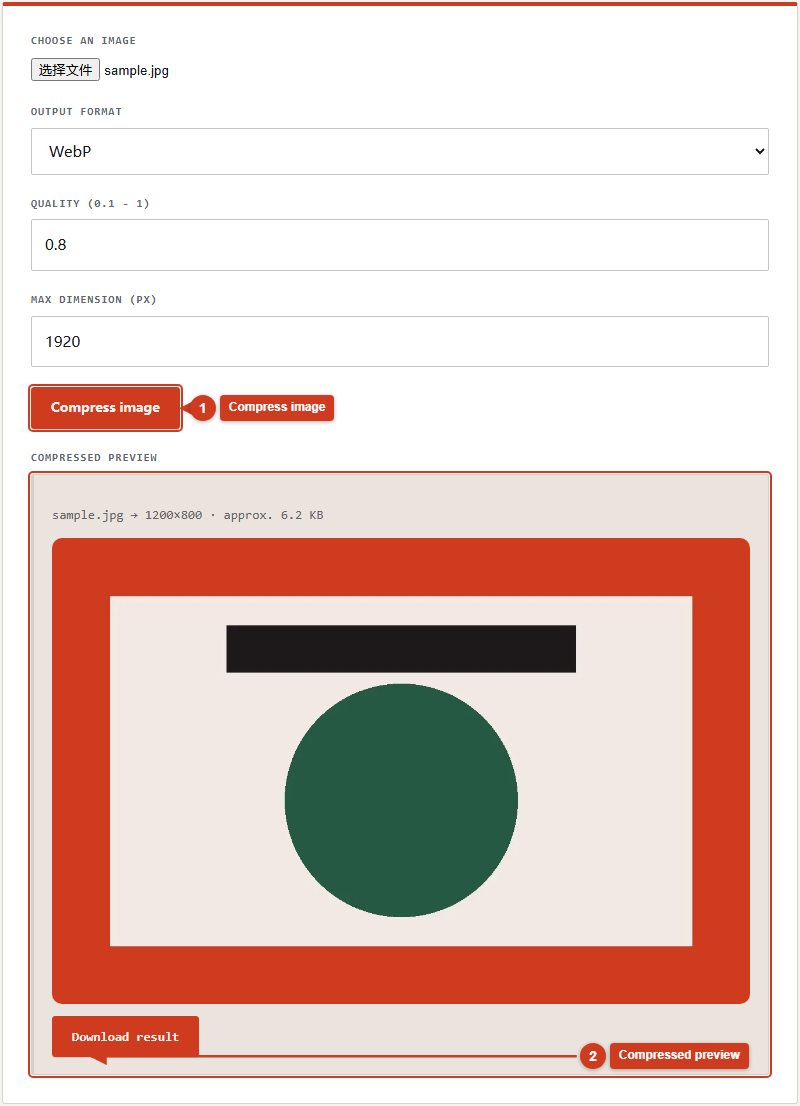
Tip: JPEG is best for photos, PNG for images with transparency, and WebP for a balance of both.
Frequently asked questions
Does my image get uploaded?
No. Compression uses the Canvas API in your browser. Your image is never sent to a server.
Which formats are supported?
JPEG, PNG and WebP inputs. Output is JPEG for photographs and WebP when you select it.
How much can I reduce the size?
It depends on the image. Photographs usually shrink significantly at quality 0.7–0.8; images with text may need higher quality.
Can I keep transparency?
Choose WebP or PNG output to preserve transparent areas. JPEG always fills transparency with white.
Page last reviewed: